Dashboard
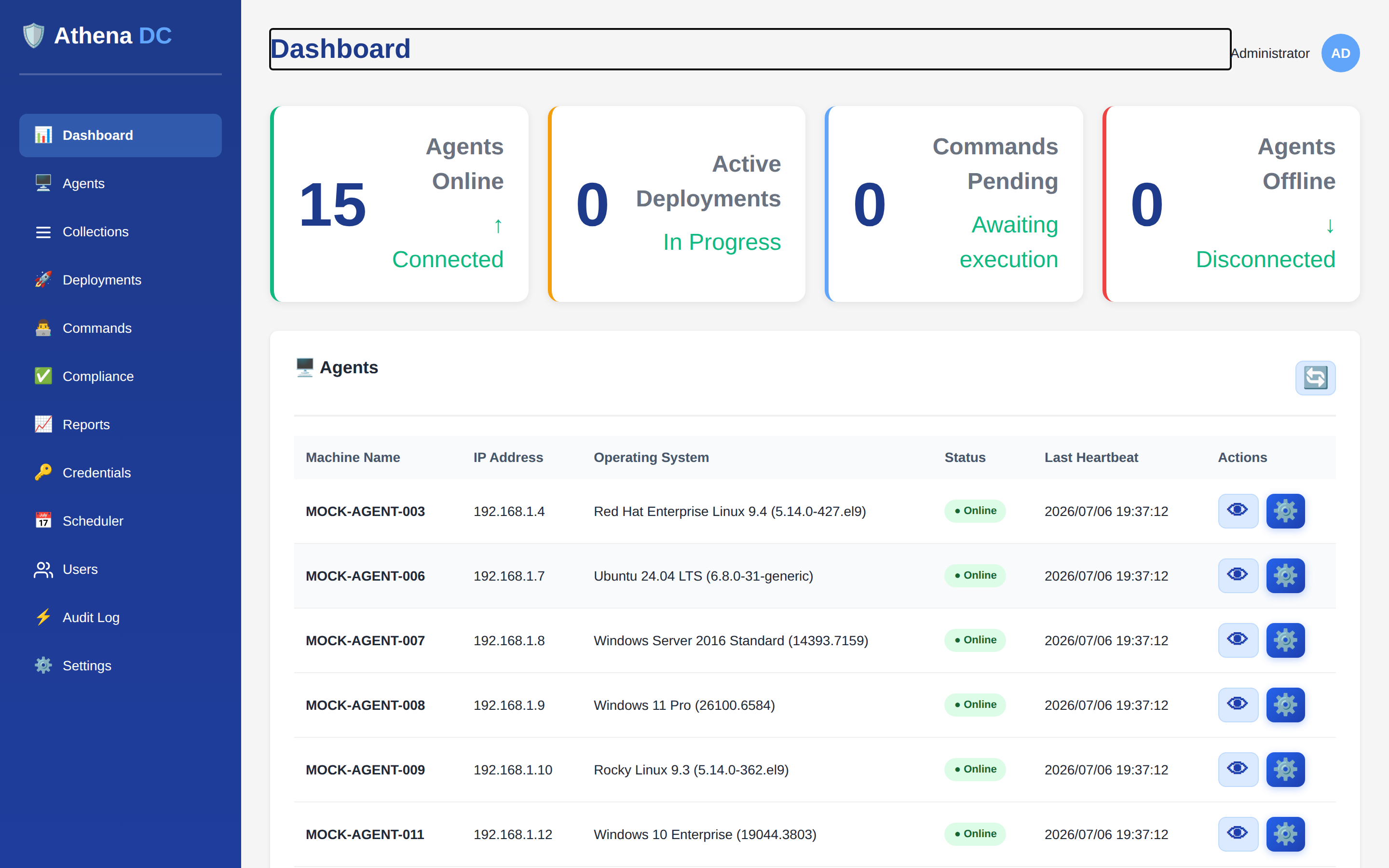
The Dashboard is the overview screen you land on after signing in to the
Athena console (/dashboard). It gives an at-a-glance view of your fleet — how many
agents are online, what is deploying right now, and which commands are queued — and it keeps
those numbers current in real time. Every panel links out to the full page behind it, so the
Dashboard doubles as your starting point for daily operations.
The Dashboard requires an authenticated session. Opening the site root
(/) redirects to the sign-in page; after you sign in you are taken to
/dashboard. See Authentication & SSO.
Getting started checklist#
On a fresh install, a Getting started card appears right under the Dashboard header. It lists the steps that must be in place before your first agent can enroll and connect, shows a “N of 4 done” progress count, and ticks each step automatically from the server’s live state — there is nothing to mark by hand. Every step that is still open carries a link straight to the Settings page that completes it.
The four steps#
| Step | Ticked when… | Link on an open step |
|---|---|---|
| Server address agents can reach | The Public URL is set to an http/https address
whose host is not localhost or a loopback IP, and — when TLS is on
— that host is named in the server certificate. When done, the step reads
Agents will connect to <host>. |
Settings > General |
| Valid license | The license does not block new agent enrollment. A valid license shows N days left (or Licensed, no expiry); an expired license still inside its grace period stays ticked and shows Expired - N days of grace left. | Settings > License |
| Agent binary uploaded | At least one active agent binary exists for Windows, Linux or macOS. When done, the step lists the operating systems that have one (Available for …). | Settings > Agent > Updates |
| Install your first agent | An agent has registered with the server. Use the one-line installer for Windows, Linux or macOS; it creates its own one-time registration token, so you do not need to create a token first. | Settings > Agent > Configuration |
For background on each step see General Settings (Public URL), Server TLS (certificate host names), Licensing, Agent Updates (uploading agent binaries) and Agent Enrollment (the one-line installers).
Why the server address step stays open#
The installer bakes the Public URL’s host into each agent, and the agent refuses to connect if the server certificate does not name that host. The step therefore explains exactly what is wrong:
| Message on the card | What to do |
|---|---|
| Set the Public URL agents use to reach this server. | Enter the address agents should use under Settings > General > Public URL (for example https://athena.corp.example:8443). |
| The Public URL points at this machine only (<host>) - agents on other machines cannot reach it. | Replace localhost / 127.0.0.1 / ::1 with a host name or IP that other machines can reach. |
| <host> is not named in the server certificate, so agents would refuse it. Use a name the certificate carries, or add it to Server:Hostnames and restart. | Either change the Public URL to a name the certificate already carries, or add the host to Server:Hostnames and restart the server (see Server TLS). The server’s own machine name is always accepted. This check is skipped when TLS is turned off. |
| Agents would connect to <IP>, a DHCP address that can change. Set a static IP or a host name (FQDN) first. | Appliance only. The Public URL is an IP address the appliance received over DHCP. Give the appliance a static IP or a host name on its console first. |
The appliance’s address is set on its own console rather than in the web UI, so the server address step shows a hint instead of a link: Set it on the appliance console: Network, or Host name.
Who sees it, and when it goes away#
- Only users who can change settings (the
settings.managepermission, held by the Admin role by default) see the card — every link on it lands in Settings. Other users never see it. See Permission Model. - It disappears on its own once every step is done, or as soon as the first agent registers with the server. With live updates on, the card vanishes the moment that agent checks in, without a page reload.
- Hide guide on the card header hides it for everyone on this server. The choice is stored on the server, not in your browser. Until setup is finished, a small Getting started guide button remains in its place to bring the checklist back.
Hiding and re-showing the guide are both recorded in the Audit Log as
GettingStartedGuideHidden and GettingStartedGuideShown, with the user who
did it.
Over the REST API#
The same checklist is available to scripts, with the same settings.manage permission
(see REST API for authentication):
| Request | Does |
|---|---|
GET /api/getting-started | Returns whether the card is shown (visible), whether it was hidden (hidden), the registered agent count, doneCount / totalCount, and each step with its key (server-address, license, agent-binary, first-agent), done, a reason when open (NotSet, Loopback, NotInCertificate, DhcpAddress, Unlicensed, Expired, or Grace), the judged value, and license daysLeft. |
PUT /api/getting-started/hiddenbody {"hidden": true} | Hides (true) or shows again (false) the guide for everyone on this server. Audited as above. Returns 500 with The settings file could not be written if the change cannot be saved. |
$h = @{ Authorization = "Bearer ath_..." }
(Invoke-RestMethod https://athena.corp.example:8443/api/getting-started -Headers $h).data.steps |
  Format-Table key, done, reason, value
Status cards#
Four summary cards run across the top of the Dashboard. Each shows a single live count that reflects your entire fleet, not just the agents currently shown in the table below.
| Card | What it counts |
|---|---|
| Agents Online | Agents whose status is Online and whose last heartbeat is recent (see how online is decided). |
| Active Deployments | Deployment executions that are Running or Pending — everything currently in flight. |
| Commands Pending | Remote commands that are Pending or Running — queued or executing right now. |
| Agents Offline | Every other registered agent — those with a stale heartbeat or an offline/revoked status. |
Together the Online and Offline cards always add up to the total number of registered agents, so the pair gives you an instant read on fleet reachability.
How agent health is decided#
An agent counts as online when both of these are true: its stored status is
Online, and its most recent heartbeat arrived within the heartbeat-timeout
window. That window is controlled by the Agent:HeartbeatTimeoutSeconds setting and
defaults to 60 seconds. Any agent that fails either test — a stale heartbeat,
or a status of offline or revoked — is counted as offline.
The online count is also cross-checked against live agent connections to the server: if more agents are actively connected than the database has yet recorded as online (for example during a brief write delay), the live connection count is used, so the Dashboard never under-reports how many machines are reachable. The count is never allowed to exceed the total number of registered agents.
Lowering Agent:HeartbeatTimeoutSeconds makes the Dashboard flag agents as
offline sooner; raising it tolerates longer gaps between check-ins. See
Configuration.
Agents table#
Below the cards is a paginated table of your agents. Each row shows the machine name, IP address, operating system, an online/offline status pill, and the last heartbeat time:
| Column | Shows |
|---|---|
| Machine Name | The agent's hostname. |
| IP Address | The agent's last-known IP address. |
| Operating System | The reported OS version. |
| Status | An Online or Offline indicator. |
| Last Heartbeat | When the agent last checked in (Never if it never has). |
| Actions | Open the agent's details, or jump straight to running a command against it. |
The list is sorted to surface what matters first: online agents come first, then by most-recent heartbeat, then alphabetically by hostname. Paging is server-side and the page size follows the Default Page Size general setting (default 25). A refresh control on the card header reloads the current page on demand. When no agents are registered yet, the table shows a no agents registered placeholder.
Active deployments#
This panel shows cards for deployments that are currently in flight (up to five at a time). Each card lists the deployment name, the package being deployed, the number of target agents, when it started, and its status, with a progress bar and a "X of Y completed" count so you can watch a rollout advance. A quick action on the card header takes you to the full Deployments page to start a new one. When nothing is deploying, the panel shows a no active deployments message.
Recent commands#
The last panel lists the five most recent remote commands. Each row shows the command text (truncated if long), the target agent (or an "N agent(s)" count when a command fanned out to several machines), its status, and when it was executed. A view action opens the command's output. A shortcut on the card header jumps to Execute Command to run a new one. When there is no command history yet, the panel shows a no recent commands message.
Live updates#
The Dashboard updates itself in real time. It subscribes to agent heartbeat
events over a live connection to the server, so when an agent comes online or drops off, the
status pill on its row and the Online/Offline cards update on the spot — no manual reload
needed. Live agent updates require the agents.view permission; without it the
Dashboard does not open a live connection.
Live updates come only through that connection — the Dashboard does not run a periodic refresh timer, and its header no longer shows a polling interval. The same is true of the other live console pages:
| Page | Updates live when… |
|---|---|
| Dashboard | an agent sends a heartbeat (online/offline state). |
| Agents | an agent sends a heartbeat, or reports agent-update progress. |
| Commands | a command is created (Pending), starts Running, reaches any final status, or returns its result. |
| Active Deployments | a deployment reports progress, completes a step, or returns a result. |
| Collections and a collection’s details | collection membership changes. |
| Audit Log | a new audit event is recorded. |
| Scheduler | a scheduled job runs. |
“Live updates paused – reconnecting”#
Each of these pages always loads its data when you open it, whether or not the live connection is up. If the live connection drops or cannot be opened, the page keeps showing the data it already has and displays a small amber Live updates paused – reconnecting badge next to its title or item count. Nothing is shown while the connection is healthy, so a normal page load never flashes the badge.
- While paused the page does not poll the server; the figures on screen are frozen at their last value.
- Reconnecting — if the connection cannot be opened, the page retries it after 2, 5, 15 and 30 seconds (about one minute in total). If the connection was up and then dropped, the page reconnects automatically.
- On reconnect the badge disappears and the page re-reads its data once, so anything that changed while it was paused is picked up.
- If every retry fails the badge stays on screen; reload or reopen the page to try again.
When a page cannot open its live connection, the server log records a warning naming the
page, for example Dashboard: SignalR connection failed - live updates paused, retrying
the connection, and — once every retry is used up —
… failed 5 times - live updates stay paused until the page is reopened. See
Server Logging for where to find the log.
Related settings#
| Setting | Controls | Default |
|---|---|---|
Agent:HeartbeatTimeoutSeconds | How recent a heartbeat must be for an agent to count as online. | 60 |
General.DefaultPageSize | Rows per page in the agents table. | 25 |
Default Page Size is exposed under Settings → General; see General Settings. The Dashboard Refresh Interval setting on that tab no longer drives a refresh timer — the Dashboard and the other live pages update through the live connection described above, whatever that setting is set to.