Beginner Guide: from download to your first agent
New to Athena? This guide takes you from nothing to a managed machine in five steps: download the virtual appliance, import it, answer the five setup questions on its console, sign in to the web console, and install your first agent. Plan on about 30 minutes. No internet connection is needed at any point. Each step has a short video, the Athena Beginner Series.
A hypervisor (Microsoft Hyper-V on Windows Server 2016+ / Windows 10+, or VMware Workstation 17+ / ESXi / vSphere); a VM with 2 vCPU and 4 GB RAM (enough for up to 500 devices, see Server Sizing for more); an IP address or DNS name for the appliance that will not change; and one Windows machine to enroll as your first agent.
1. Download the appliance#
Get the image from the Downloads page. Pick the file for your hypervisor:
| File | Hypervisor | Firmware |
|---|---|---|
athena-appliance.vhdx | Microsoft Hyper-V, Generation 2 VM | UEFI, Secure Boot off |
athena-appliance.ova | VMware Workstation 17+, ESXi / vSphere | BIOS |
Before you import it, check that the file's SHA-256 matches the one published with the release:
Get-FileHash .\athena-appliance.vhdx -Algorithm SHA256   # Windows
sha256sum athena-appliance.ova                           # Linux / macOS
The appliance includes a trial licence, valid until a date published with each release, so you can start right away.
2. Import it into your hypervisor#
Hyper-V#
Copy the VHDX to the folder the VM will live in (not your Downloads folder), then in an elevated PowerShell:
New-VM -Name Athena -Generation 2 -MemoryStartupBytes 4GB -VHDPath D:\VMs\Athena\athena-appliance.vhdx -SwitchName '<your virtual switch>'
Set-VMFirmware -VMName Athena -EnableSecureBoot Off
Set-VMProcessor -VMName Athena -Count 2
Set-VMMemory -VMName Athena -DynamicMemoryEnabled $false
Start-VM -Name Athena
Or in Hyper-V Manager: New → Virtual Machine, choose Generation 2 and Use an existing virtual hard disk, then under Settings → Security clear Enable Secure Boot. Hyper-V Manager does not show the VM's IP address; you will read it from the VM console in the next step.
VMware#
- Workstation: File → Open, choose the
.ova, name the VM, Import. - ESXi / vSphere: Deploy OVF Template, choose the
.ova, then pick a host, datastore and network.
Set 2 vCPU and 4 GB RAM, then power it on.
3. Answer the setup questions#
Open the VM console. The first boot takes a minute or two. Instead of a login prompt you get the
Athena menu, which starts a short setup wizard. Press Enter to keep the
default shown in [brackets]. Everything can be changed later from the same console.
| Question | Default | What to answer |
|---|---|---|
1/5 Network: d = DHCP, s = static IPv4 | d |
Type s for a static address (recommended, see below). You are then asked for the
IPv4 address/prefix (e.g. 192.168.10.20/24), the default gateway
(must be in the same subnet), and the DNS servers. |
2/5 Host name | athena-appliance |
One name, letters, digits and - only (e.g. athena01). Next you are asked
for an optional DNS domain (e.g. corp.local); leave it blank for none. |
3/5 NTP servers | default |
Your time servers, comma-separated. On an isolated network, enter your own NTP server, because the defaults are internet servers. With your own servers you can also add an optional authentication key. |
4/5 Time zone | UTC |
An IANA name such as Europe/London or America/New_York. The console clock
and the web console's times follow it. |
5/5 Database | 1 |
1 = SQLite, right for most installs. 2 = local PostgreSQL, for more than
3,000 devices. |
The wizard shows a Summary; answer y to Apply. If you just
want to try Athena, type skip at the first question to keep every default.
When setup finishes, the console shows the Athena URL and the initial admin password. The password is generated for this appliance only. Write both down.
Every agent remembers the address it was installed with. If the appliance's address changes later, its agents lose the server. Use a static IP in the wizard, a DHCP reservation for the VM's MAC address, or a DNS name (host name + domain, plus a DNS record).
Make sure your network lets admins reach the appliance on TCP 8443 (web console) and lets
the machines you will manage reach it on TCP 8444 (agent connections). The appliance needs
no outbound access.
4. Sign in to the web console#
- Browse to the URL from the console,
https://<appliance address>:8443. - The browser warns about the certificate the first time: the appliance creates its own certificate authority on first boot. Accept it, or install the appliance's CA certificate on your admin machines (see Certificates & PKI).
- Sign in as
adminwith the password from the console. - Change that password straight away on your profile page (Change password). After that, the console no longer shows it.
The Getting started checklist#
The Dashboard shows a Getting started card with the few things a new server needs before its first agent can connect. Each one ticks itself when it is done:
| Step | On the appliance |
|---|---|
| Server address agents can reach | Set on the appliance console (Network or Host name). It stays open while the address is a DHCP address that can change. |
| Valid license | Done: the trial licence is already active. Upload your own under Settings → License. |
| Agent binary uploaded | Done: the agents and their installers ship with the appliance. |
| Install your first agent | The next step in this guide. |
The card disappears once your first agent connects.
5. Install your first agent#
- In the web console, open Agents and click Install agent.
- Choose Windows (or Linux / macOS). Athena generates an installer already filled in with this server's address, and shows Run this one-liner on the new machine (elevated).
- Click Copy one-liner.
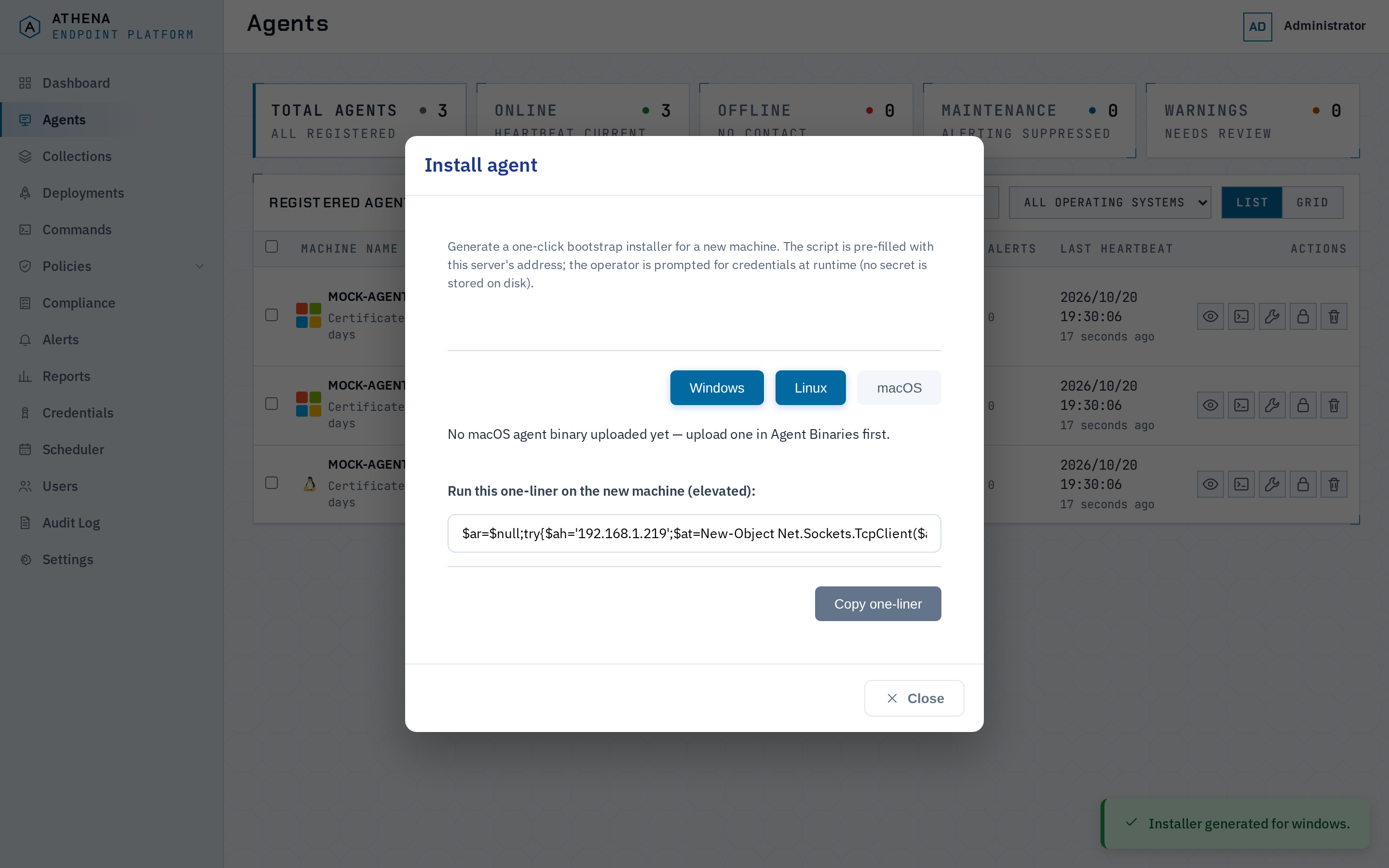
On the Windows machine you want to manage:
- Open PowerShell as Administrator and paste the one-liner.
- Press Enter to accept the pre-filled Athena server host, API port [8443] and Agent (gRPC) port [8444].
- Enter your Athena Username and Password.
The installer checks the server's certificate, signs in, creates a one-time registration token, downloads
the agent, verifies its integrity, installs it as the HermesAgent Windows service, and confirms
it connected. It finishes with:
================================================
 Agent enrolled - online
================================================
Back in the web console, the machine appears on the Agents page with its operating system, status and last heartbeat. Athena is now managing it.
6. Keep it up to date#
Appliance updates come as one signed file, athena-update-<version>.tar, and install fully
offline. In Settings → Appliance, under Appliance updates, click
Upload bundle, then Verify (it checks the signature and every file, and changes
nothing) and Apply. The appliance takes a backup, installs the update and checks that the new
version is healthy; if it is not, it rolls back by itself. Agents are not updated automatically: roll out the
new agent version when you are ready (Agent Binaries & Updates).
What's next#
- More machines: Agent Enrollment (Linux, macOS, unattended installs) and AD Agent Deployment.
- Group them: Collections and Agent Tags.
- Put them to work: Software Deployment and Command Execution.
- Add your team: User Accounts and Roles.
- Keep it safe: back up the appliance under Settings → Appliance → Backup, and read Air-Gapped Operation.